
Hi friends, in this tutorial I will show you how to download and install WhatsApp on Windows 8.1 or Windows 8, Windows 7 /PC/Computer/Laptop. Scroll down to download Whatsapp for PC.
- Antivirus for windows 8.1
- This might be useful for you Create WiFi Hotspot for Windows 8 PC in 50 seconds.

How to Download and Install WhatsApp on Windows 8.1 or Windows 7/8 PC/laptop for free
There are few ways to install whatsapp on PC but only one method is working well and it is the best as far as i have seen. I have tested 2 methods but now, I am going to tell you the best method to download and install WhatsApp on Windows PC for free. This method is absolutely free and 200% working.
Requirements To Use WhatsApp On Windows PC For Free
- To install WhatsApp you should have at least 1GB of RAM but 2 GB or higher is recommended.
- You must have high speed Internet connection to download and install WhatsApp in our PC/laptop. ( At least 256 Kbps)
- Dual core processor ( at least 1.6 GHz) . I am not sure about this.
- If your system have all these specifications then your Windows PC is ready to install WhatsApp. It will take 10-20 minutes to use WhatsApp in PC ( Windows 8 or Windows 8.1 laptop). Follow the below simple steps to successfully install WhatsApp on Laptop.
Download WhatsApp For Windows 8.1, Windows 7/8 PC/Laptop
First you have to download one software (which is called as BlueStacks) to use WhatsApp which is available for free. You can download the software from below link. It is just 9 MB software. It just takes 2-3 minutes depending upon your network speed. Download Bluestacks For PC
After the completion of download you just open the software and install it like any other Windows software’s.
It need Internet connection to install that file. It is a run time file so you should have network connection to install BlueStacks. It will take a little while to install BlueStacks on your PC. After installing BlueStacks in your PC you can see a shortcut of that software in your desktop or you can find it in Windows search. If you get any errors while installing contact us we are ready to help you.
Open the BlueStacks software after installing it in your Windows 8.1 or Windows 8/7 computer. If you had installed BlueStacks successfully (properly) you will get a window like in below image.
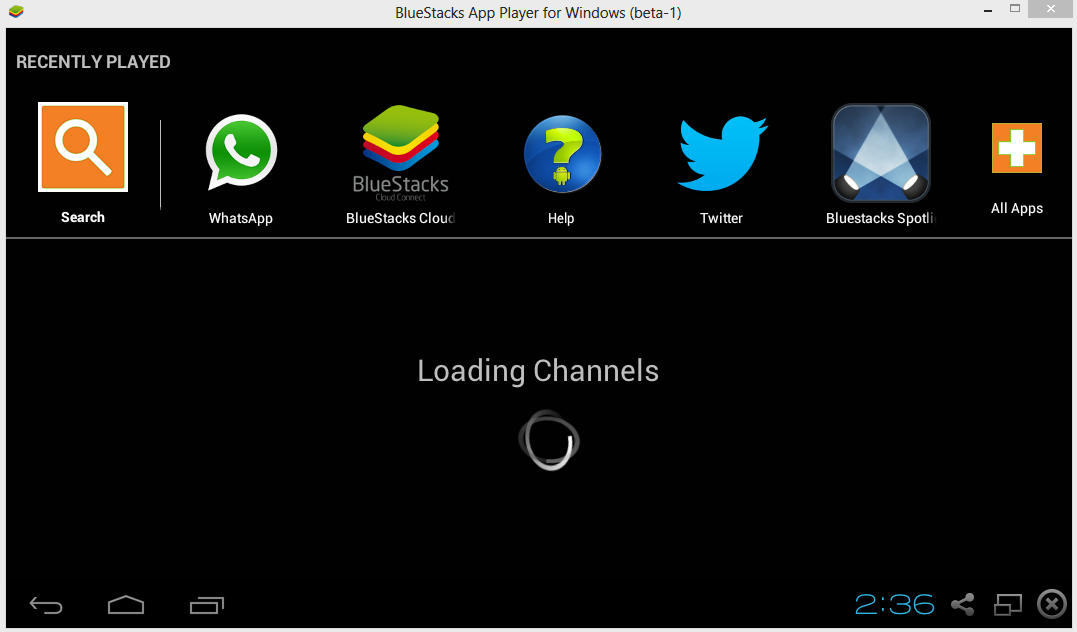
Click on the time @ right bottom >> u will see like below

Again click on time

click on settings
After clicking on settings now you will see menu which contains options like Cloud connect, language change, change keyboard these settings will be helpful later to change and manage your accounts.
In the main screen of BlueStacks you can see a search in orange color click on that one and search for WhatsApp and you will get a suggestion like search play store for some app name(check out image below) click on that one and install application. It will ask you to log in to your Gmail account just log in correctly and install WhatsApp.

click on the symbol like in this image
Now go to your mobile and install BlueStacks Cloud Connect application from play store. After installing it open it now it will ask you for a pin to get the pin number go to settings as i said above . In settings click on cloud connect there you will get your registration key(you have to enter your mobile number and Email id for that). Now go to your mobile and enter the pin.This is little tricky part be careful while doing this. This is almost over now. Click on sync in your mobile BlueStacks App.
Use WhatsApp on Windows PC
Open WhatsApp in BlueStacks and and enter your mobile number you will receive a message enter the code. If you don’t have option to enter code wait for 5 min then you will get a option to Verify with Voice call use the voice call method.
Now let me tell you some interesting facts about WhatsApp that you might not know.
WHATSAPP INTERESTING FACTS
- It has over 400 million active users world wide.
- On average every user sends over 1200 messages per month.That means total number of messages sending through WhatsApp on every month is 400 millions X 1200 . It’s too much i think, isn’t guys?
- Most of the users of WhatsApp are from European countries, Latin America, India.
- WhatsApp is the most downloaded application in Google Play Store, Nokia OVI store and Windows store in messaging category.
That’s it guys now you can use WhatsApp without any problems. If you have any queries feel free to contact us. Don’t forget to share and like this.


.jpg)

Post a Comment